
• Products

    Payroll Software

    Automate, timely pay employees, and maintain compliance

    Modern HR

    Utilize a current platform for people to do more

    Recruitment Management

    Before and after joining, provide a Positive Candidate Experience


    Integrations

    Your HR software is compatible with all of your preferred Tools

    LMS

    Smarter learning, simpler growth.

    Performance & Careers

    Objectives and Key Results (OKRs), ongoing criticism

    Time & Attendance

    Track time, manage leaves, and make payments on time

    Timesheet Software

    Workflow that may be customised to track usage and time


    Security

    Your employee data is safe and Constantly Accessible

    Mobile App

    HR made easy: manage, track, and connect anytime, anywhere.

  • Customers

    Customers

    Support

  • Pricing
  • About Us

    Our Story

    Our Team

    Partners

    Contact Us

  • AI Agents

    AI ATS

    AI PMS

    AI LMS

    AI Buddy

Sign Up
Log In
HOME

HOME

  • Products
    • Payroll Software
      • Compliance
      • Expense Management
      • Compensation
      • Loans & Advances
      • Employee Finances
    • Performance & Careers
      • 360 - Degree Reviews
      • OKRs & Goals
      • Continuous Feedback
    • Modern HR
      • Employee Profiles
      • Documents
      • Task Management
      • Pulse Surveys
      • HR Analytics
    • Time & Attendance
      • Attendance Management
      • GPS / Mobile Attendance
      • Shift Management
    • Recruitment Management
      • Applicant Tracking
      • Employee Onboarding
    • Timesheet Software
    • Integrations
    • Security
    • LMS
    • Mobile App
  • Customers
    • Customers
    • Support
  • Pricing
  • About Us
    • Our Story
    • Our Team
    • Partners
    • Contact Us
  • AI Agents
    • AI ATS
    • AI PMS
    • AI LMS
    • AI Buddy
  • Blog
  • Products
    • Payroll Software
      • Compliance
      • Expense Management
      • Compensation
      • Loans & Advances
      • Employee Finances
    • Performance & Careers
      • 360 - Degree Reviews
      • OKRs & Goals
      • Continuous Feedback
    • Modern HR
      • Employee Profiles
      • Documents
      • Task Management
      • Pulse Surveys
      • HR Analytics
    • Time & Attendance
      • Attendance Management
      • GPS / Mobile Attendance
      • Shift Management
    • Recruitment Management
      • Applicant Tracking
      • Employee Onboarding
    • Timesheet Software
    • Integrations
    • Security
    • LMS
    • Mobile App
  • Customers
    • Customers
    • Support
  • Pricing
  • About Us
    • Our Story
    • Our Team
    • Partners
    • Contact Us
  • AI Agents
    • AI ATS
    • AI PMS
    • AI LMS
    • AI Buddy
  • Blog

Core HR

6
  • Overview
  • Getting Started
  • Tasks
  • Helpdesk
  • Team
  • Documents

Settings

1
  • Organizational Setup
View Categories
  • Home
  • Docs
  • Core HR
  • Getting Started

Getting Started

1 min read

Table of Contents

  • How Do I Log in to Ojoor?
  • How to Logout from Ojoor?
  • How to Change Password into Ojoor?

How Do I Log in to Ojoor?

Logging in to Ojoor is a simple process that can be done in just a few steps. Here’s how:

  • First, open the https://app.ojoor.net/#/login 
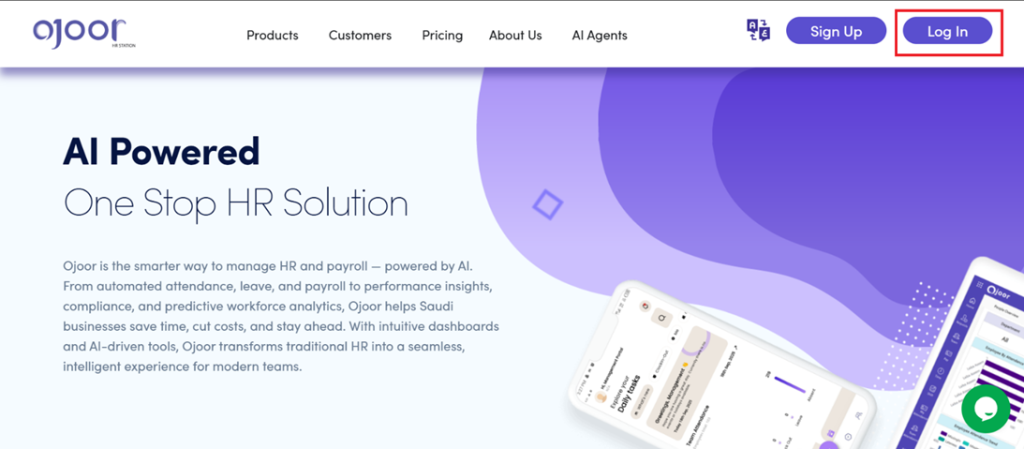
  • Enter your email address and password in the fields provided and click on the “Log In” button. 
  • You can also login with your Google account.
  • Or go to https://www.ojoor.net/  website. After click Login button you will navigate to Ojoor Login page.
How to Logout from Ojoor? 

Logging out from Ojoor is a quick and easy process. Here’s how you can do it:

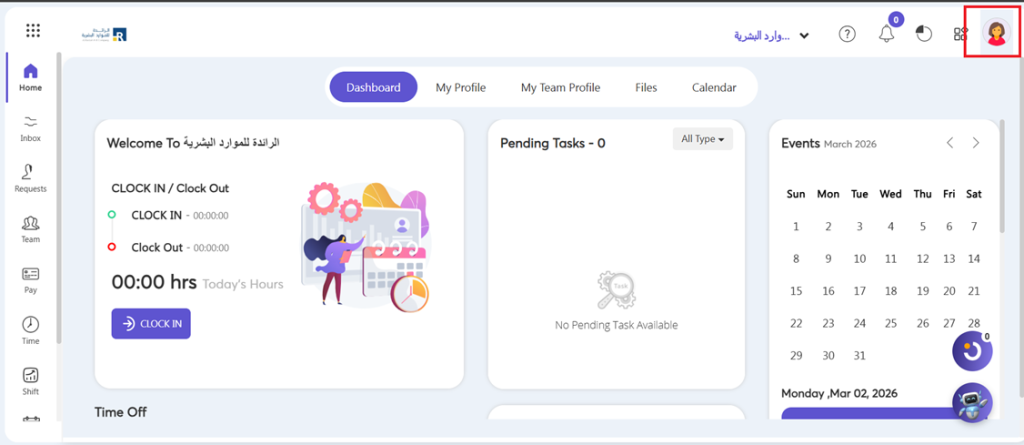
Step 1: Locate the Profile Icon

  • The Profile icon is located at the top right corner of the Ojoor homepage. Click on it. 
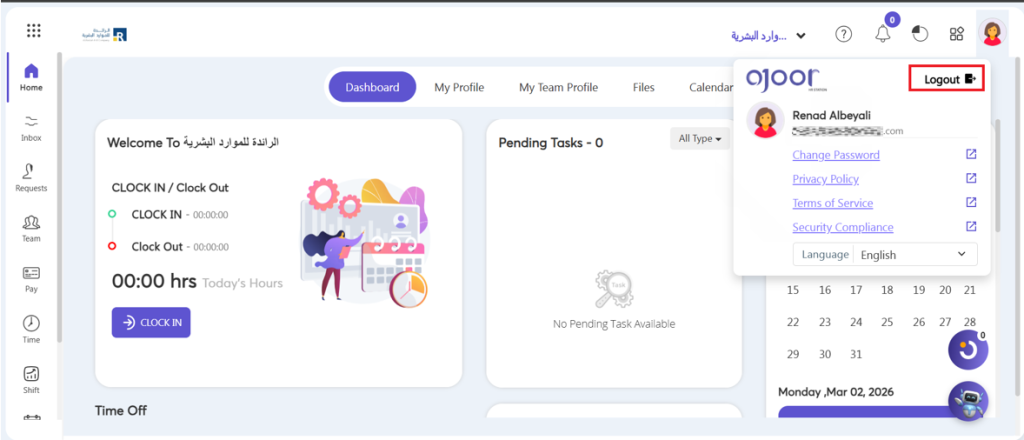
Step 2: Click on the Logout button

  • After click profile icon this will open a drop-down menu with the option to Logout. Once you have located the Logout button, click on it. This will log you out of your Ojoor account.
How to Change Password into Ojoor? 

Changing your password in Ojoor is a simple process. Here are the steps to follow:

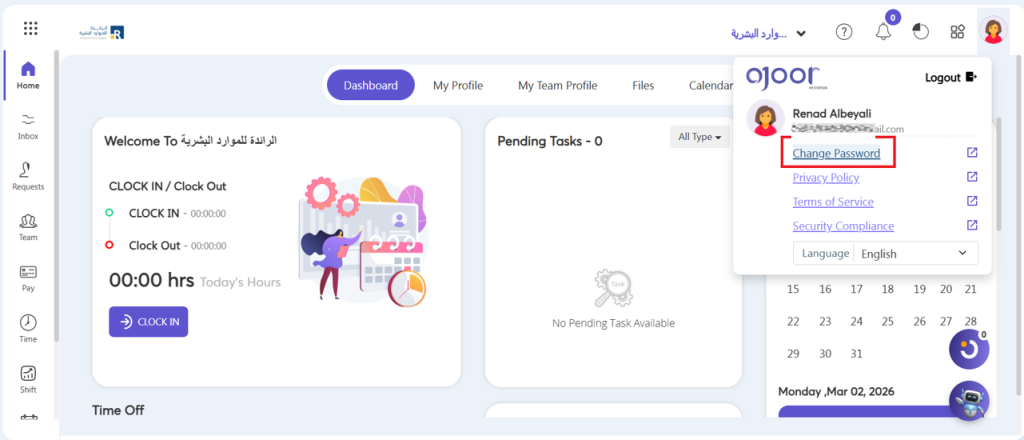
  • Once you are logged in, click on the “Profile Icon “option located on the top right corner of your screen.
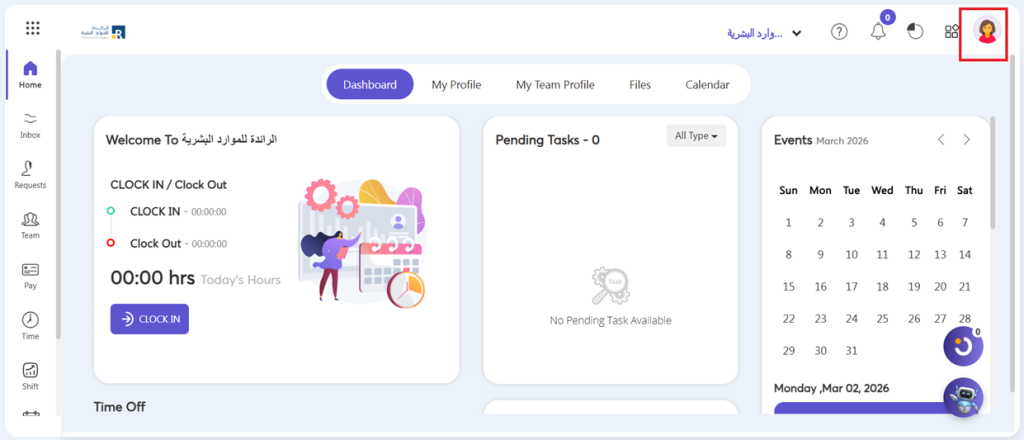
  • From the drop-down menu, select “Change Password.”
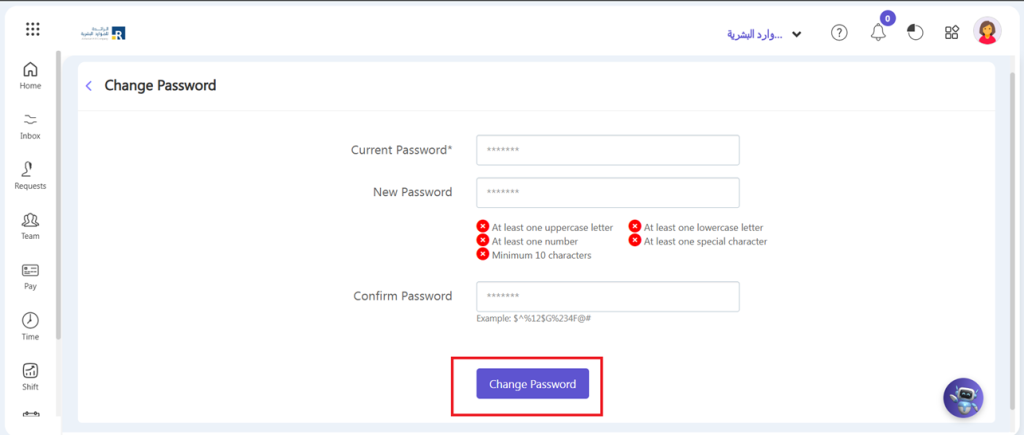
  • You will be prompted to enter your current password and your new password. Make sure your new password is strong and secure.
  • Confirm your new password by entering it again in the “Confirm Password” field.
  • Click on the “Change Password” button to complete the process.
  • You will receive a confirmation message on your screen that “Password changed successfully”.
Updated on April 8, 2026

What are your Feelings

  • Happy
  • Normal
  • Sad

Share This Article :

  • Facebook
  • X
  • LinkedIn
  • Pinterest
HelpdeskTasks

Subscribe Newsletter

© 2025 Ojoor. All rights reserved.

Contact
sales@ojoorhr.com
+966547315697

Popular Modules

  • Applicant Tracking System
  • AI-Powered Recruitment and Onboarding
  • Employee Management
  • AI – Powered PMS
  • AI – Powered LMS
  • Best HR Software

Company

  • About Us
  • Contact Us
  • Our Team
  • Customers

Resources

  • Blog
  • Knowledge Base
  • Release Notes
  • FAQs

Terms of Service

Privacy Policy

Security Policy

GDPR Compliance