Add New Employee In Ojoor
Ojoor HR and Payroll software enable you to manage all of your employees. You can also create a new employee, export employees using excels. You can edit your employees’ information directly from this section.
The appropriate tabs are used to organize the information. For instance, the “Team” tab will give information about the employee, but will also reveal personal information about the individual, such as contact details. All documents that are uploaded to employees profile will be visible on “Documents” page.
Adding employee data in Ojoor is a simple process that can be done in just a few steps. Here’s how:
- Login to your Ojoor account and navigate to the “Team” tab.
- Click on the “Create A New” button.
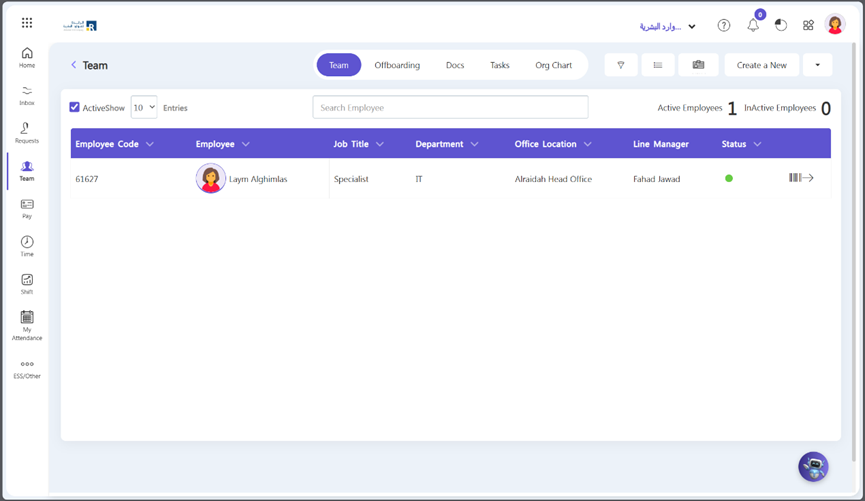
- You create an employee profile by fill out all seven sections, starting from personal details to attendance information. Please ensure that all required fields are completed.
- Once you have filled in all the necessary information, click on the “Save” button to add the employee to your Ojoor account.
How to Upload Employees through Excel
Uploading your employees data using Excel files in Ojoor is a simple process. Follow these steps to get started:
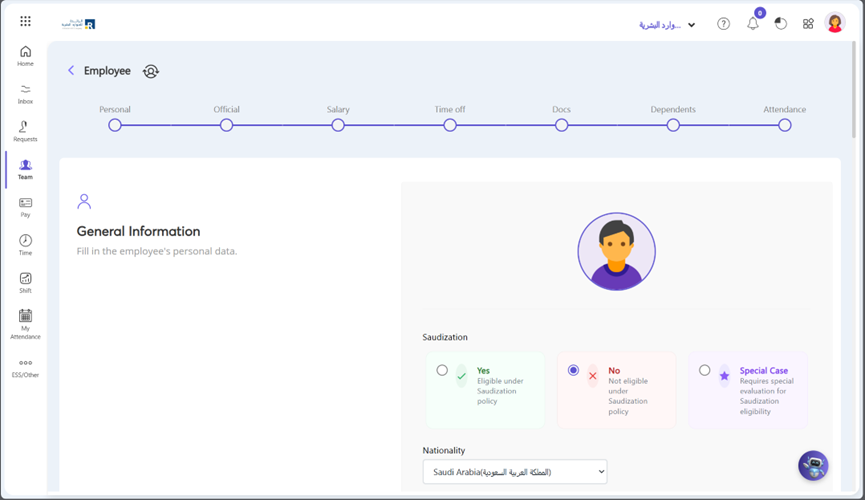
- Navigate to the “Team” section.
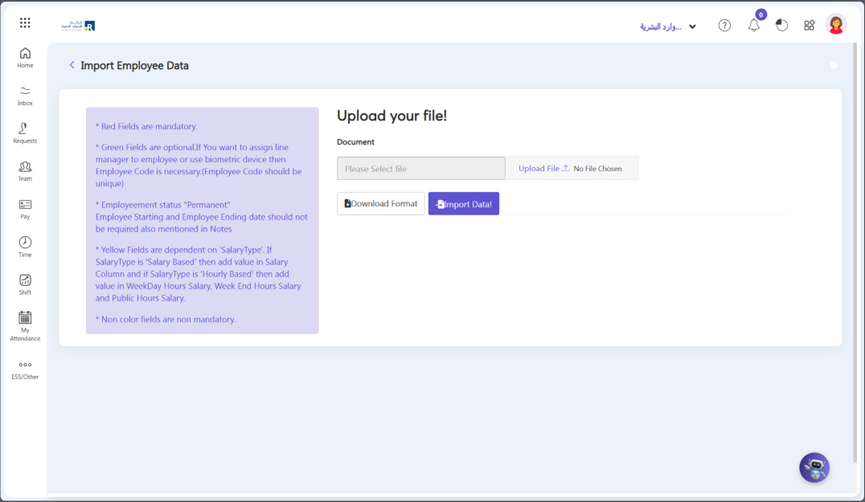
- Click on drop down arrow located beside create a new button and click “Import Employees” button.
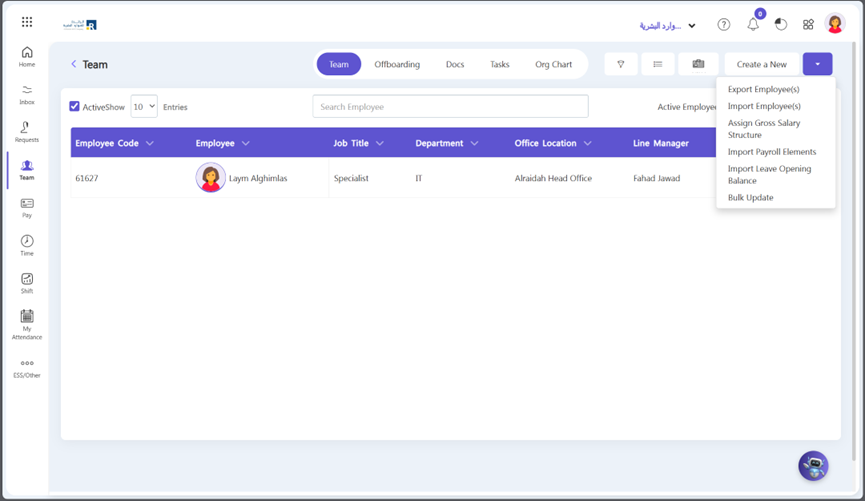
Click Download format, fill employees data in excel file, click Upload File and then Import button.
Edit Employee Profile
Editing your employee data in Ojoor is a simple process. Here are the steps to follow:
- Navigate to the “Team” section.
- Select the employee whose data you want to edit.
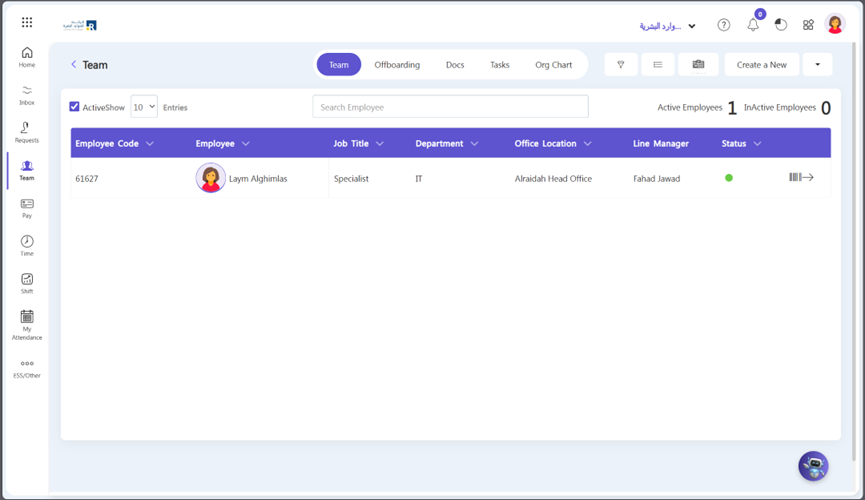
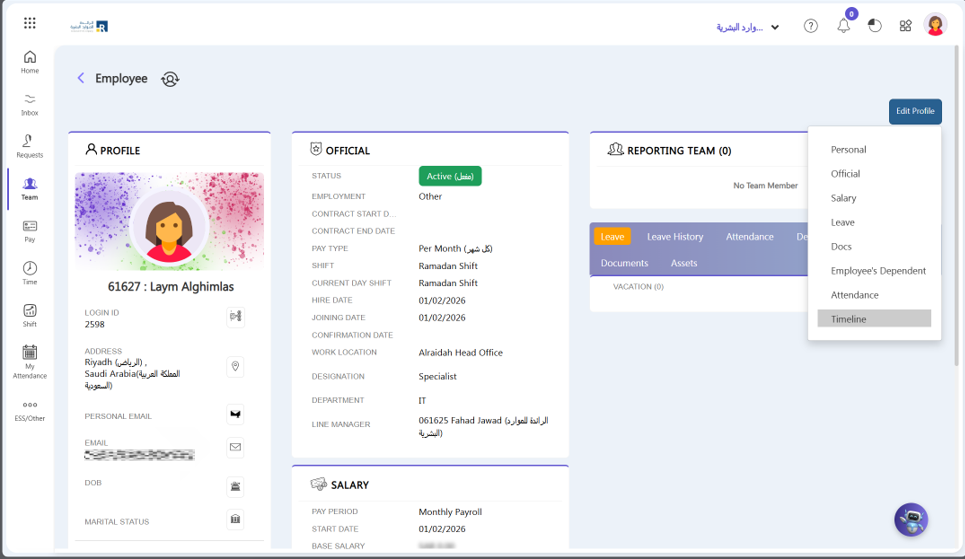
- Click on the “Edit Profile” button located at top right corner.
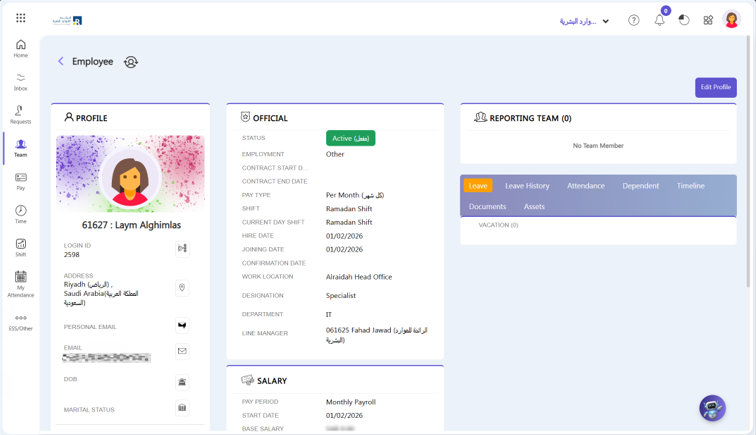
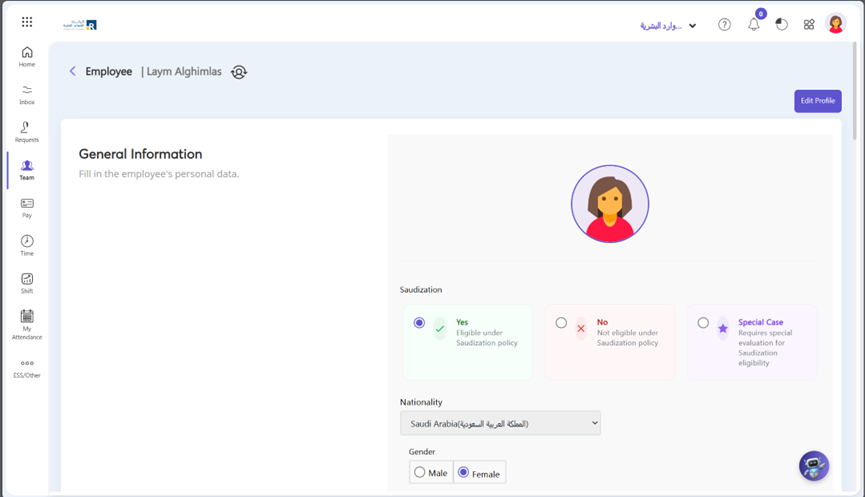
- Employee personal data such as employee profile picture, name, email address, gender, and date of birth can be edited in the personal, employee section.
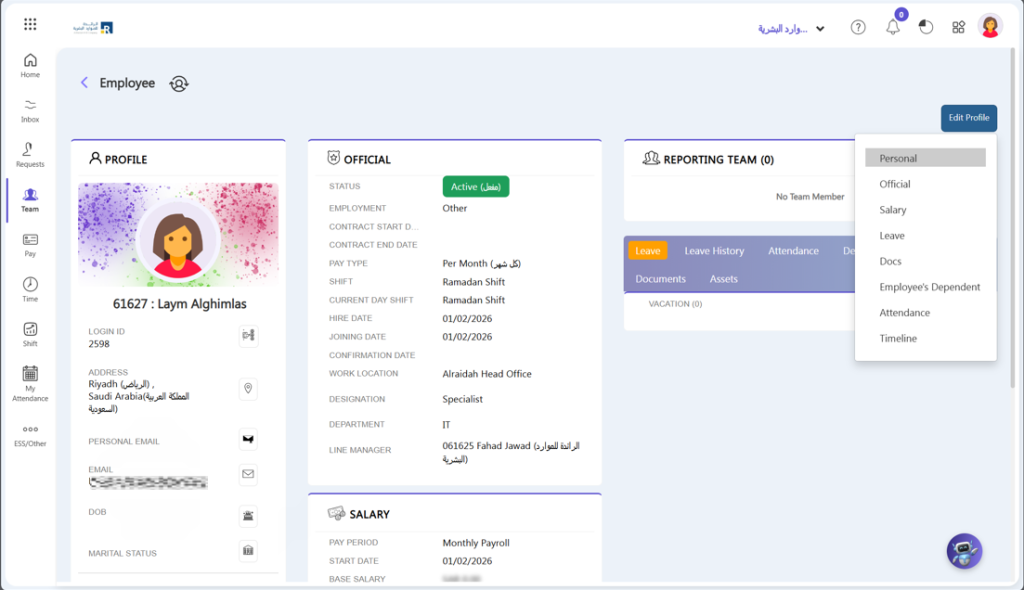
- Here you can make changes to employee profile in terms of personal information.
- Click on the Save button.
- You can edit an employee’s hiring date, joining date, office location, department, and designations in the official section of their profile.
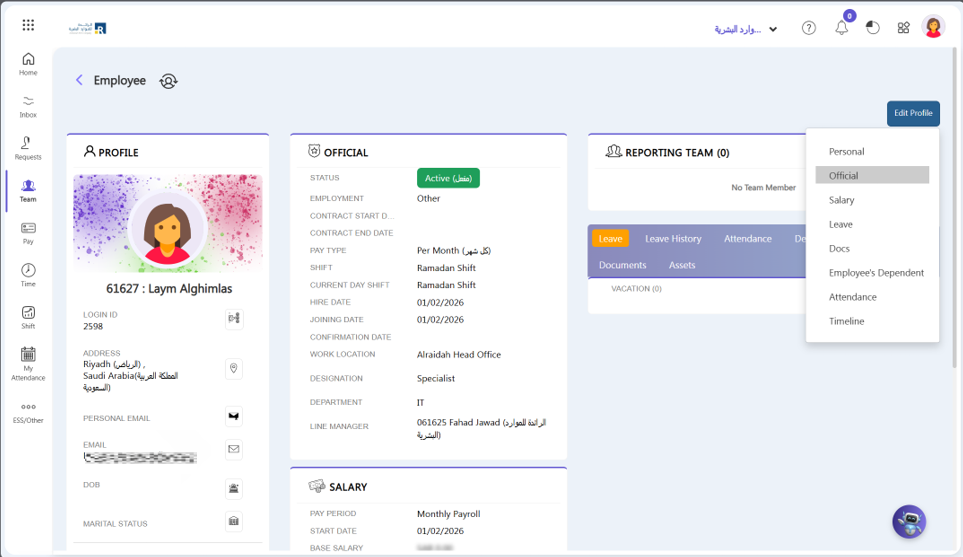
- Here you can edit an employee’s official information.
- Click on the Save button.
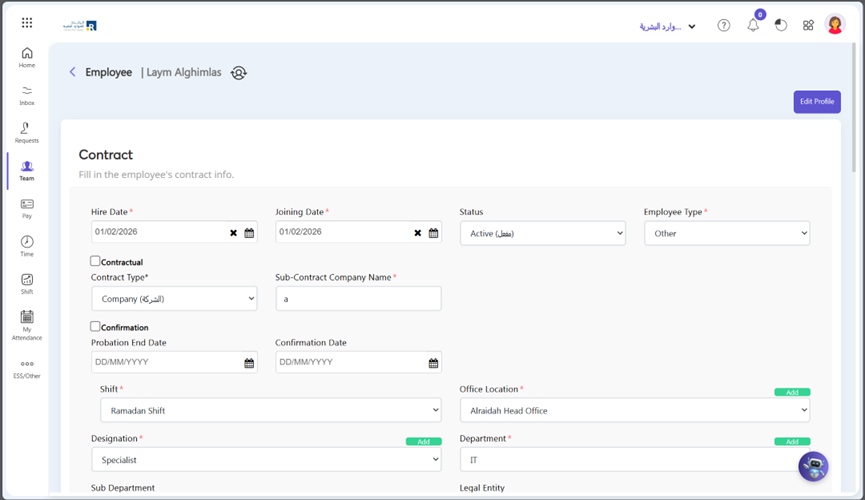
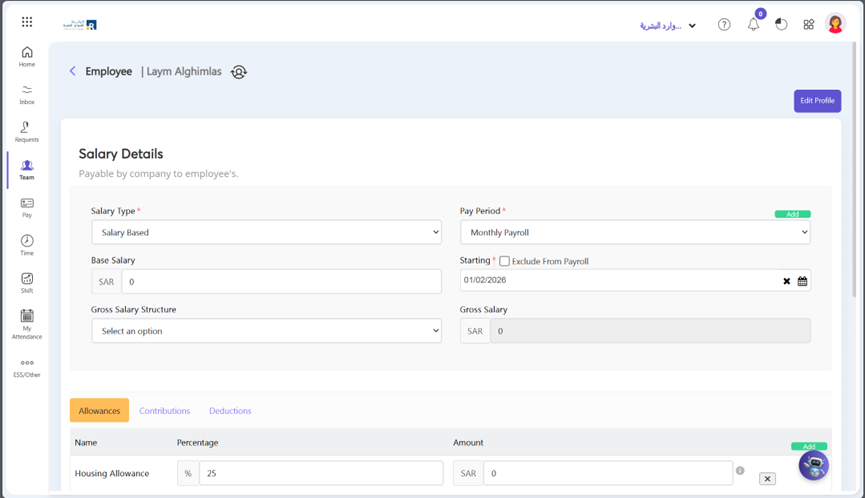
- In Ojoor we can view or edit an employee’s salary in the Salary section.
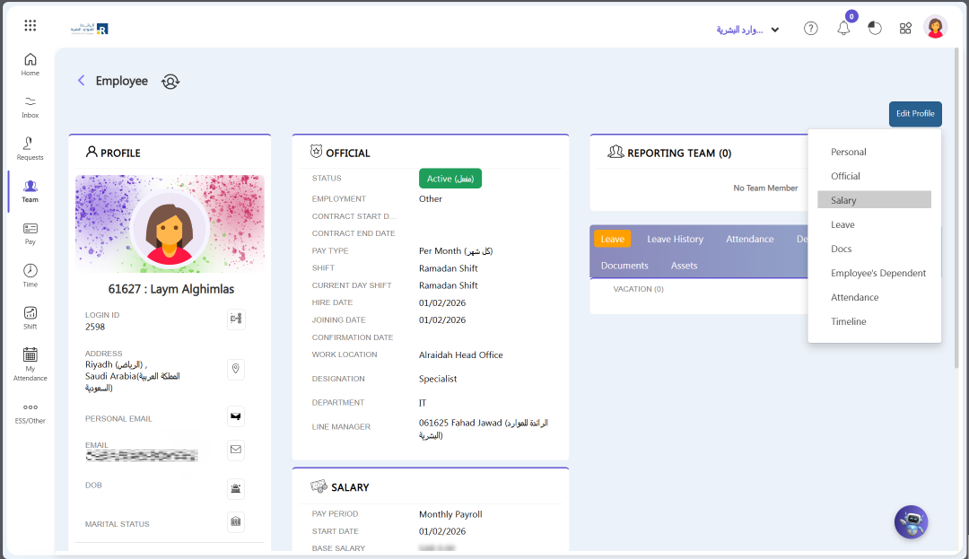
- Here you can edit or select the type of salary, pay period (payroll), basic salary, salary template, allowance, contributions, and deductions.
- Click on the Save button.
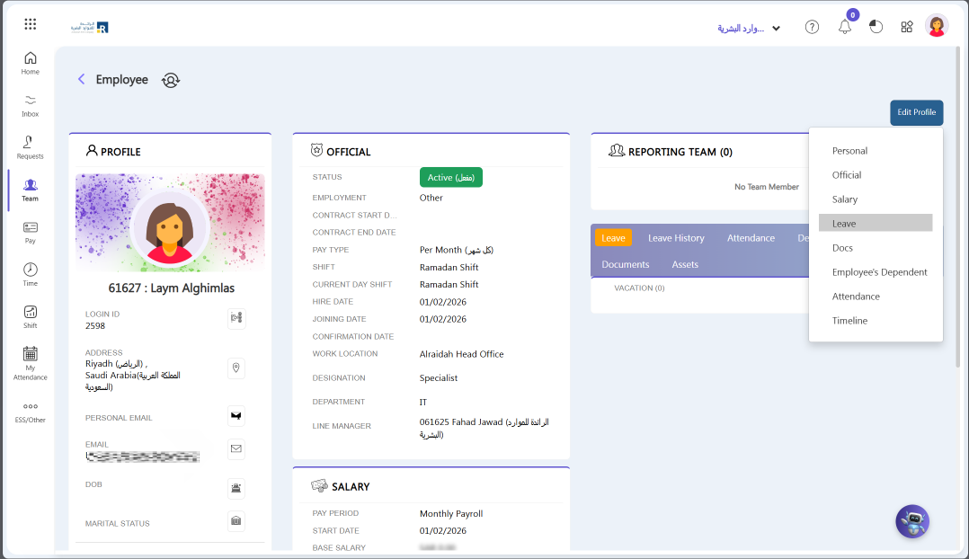
- You can edit leaves or time off in the employee profile’s leave section.
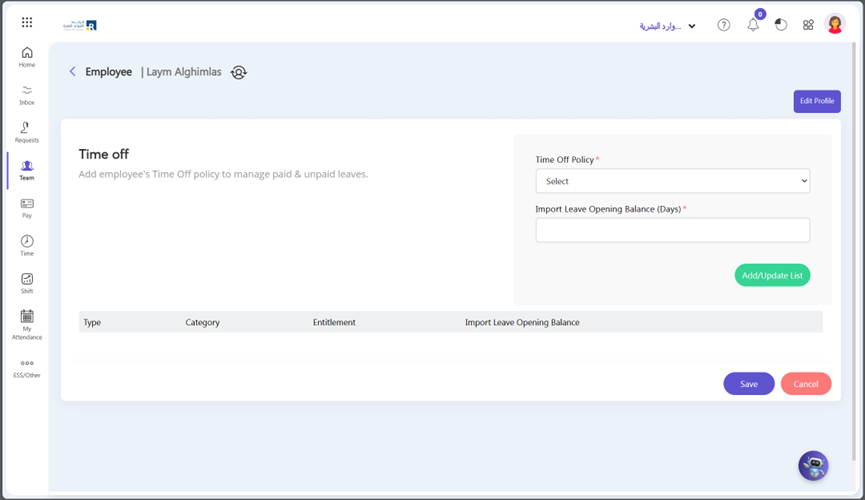
- You have the option to modify or choose the Time Off Policy, which specifies the type and number of leave that an employee may be eligible for.
- Click on the Save button.
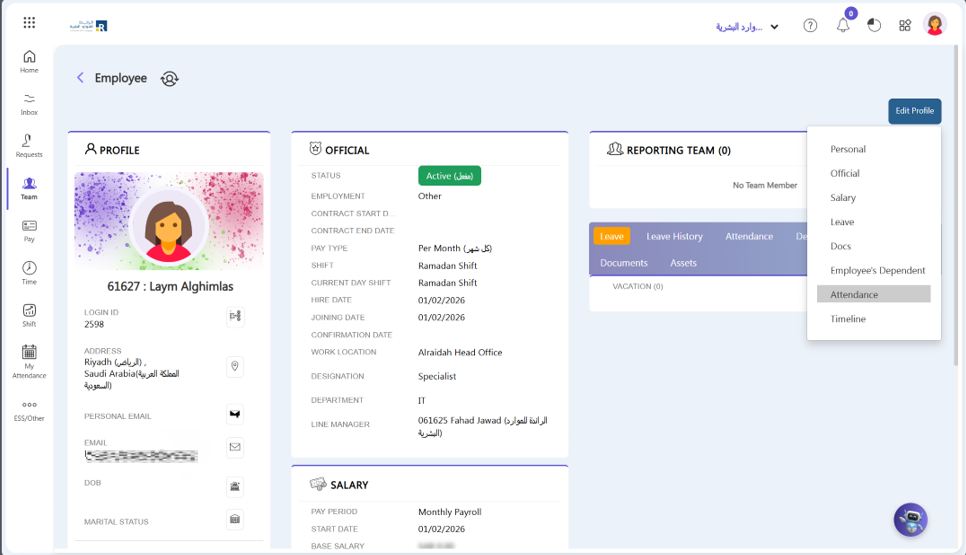
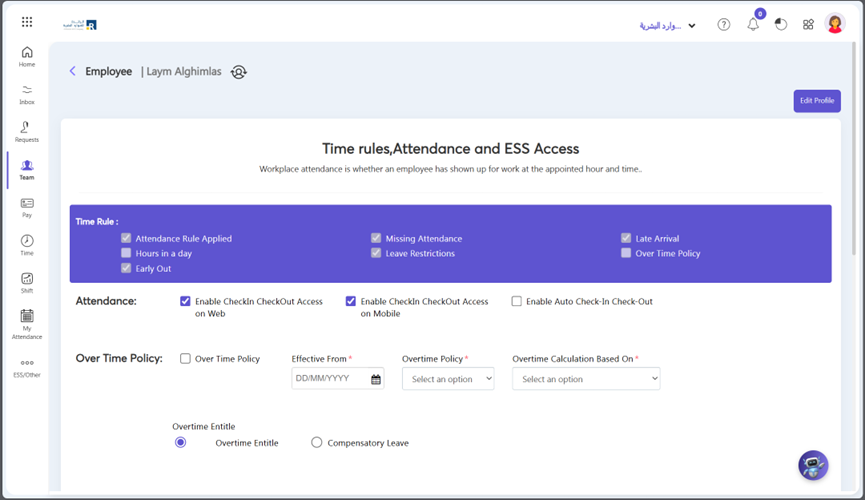
- In the Attendance Section, you can effectively manage employee time rules, attendance, and employee self-service attendance access.
- Here you can give different access like user can clocking through web or mobile app, login access and much more others things.
- Click on the Save button.
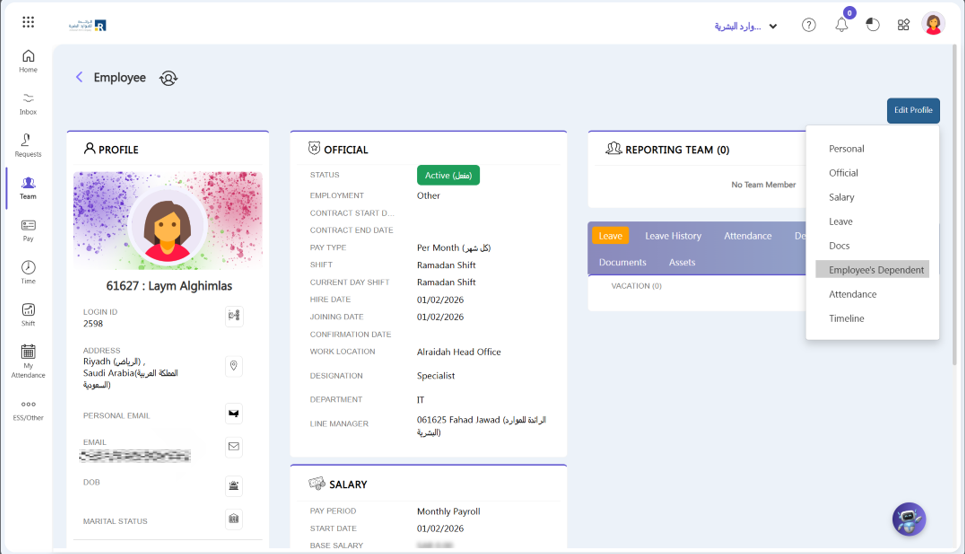
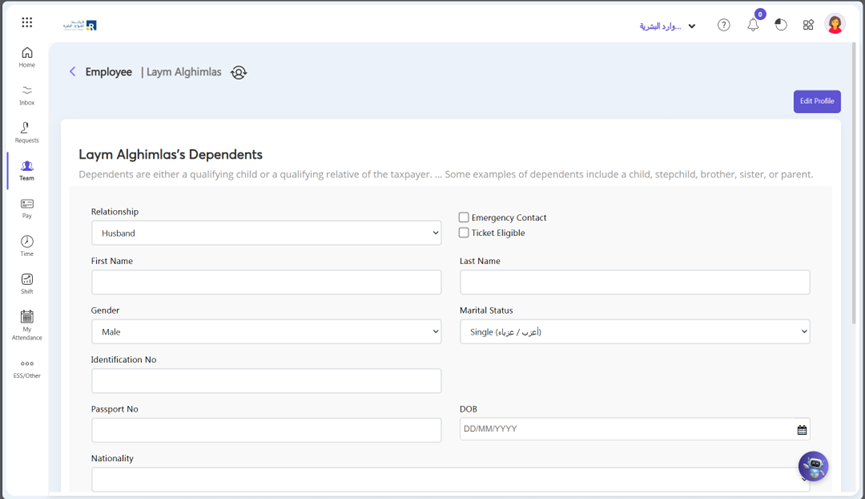
- You can also edit employee dependent information in depended section.
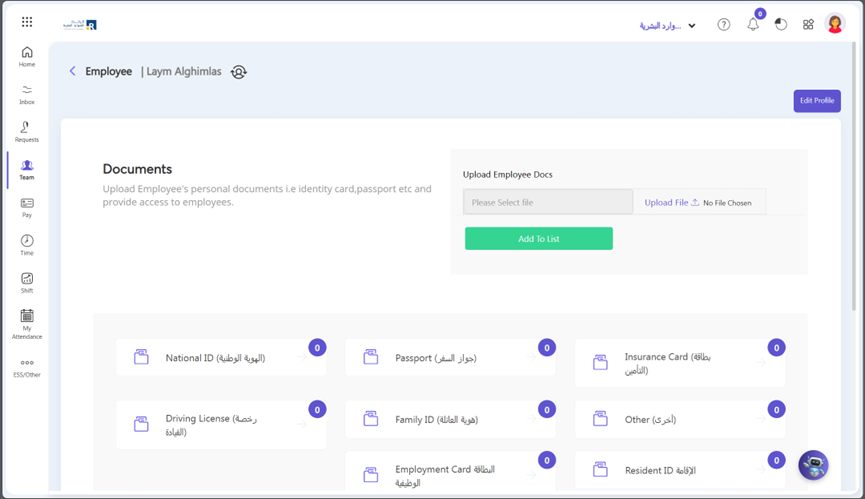
- You can upload documents in the employee profile document section and Add them to the list.
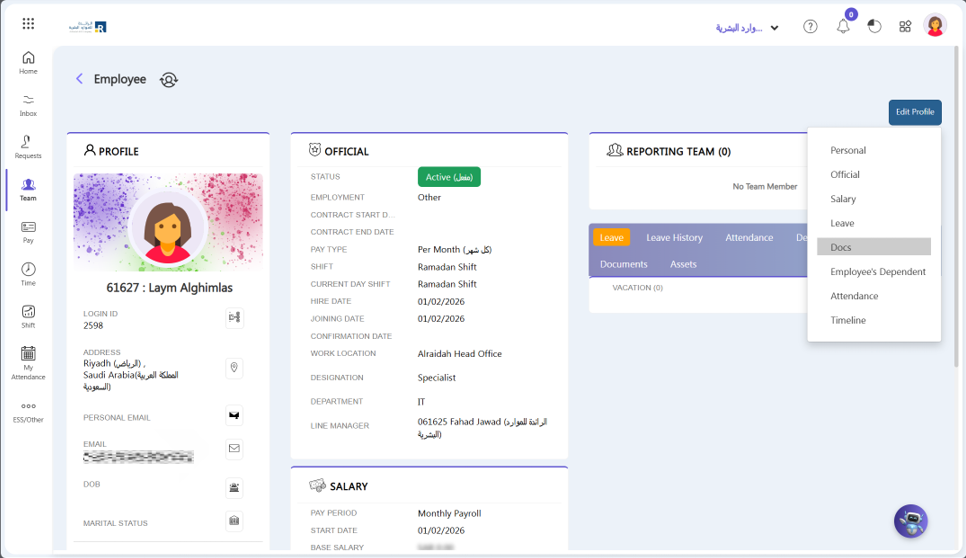
- After add them to list click Save.
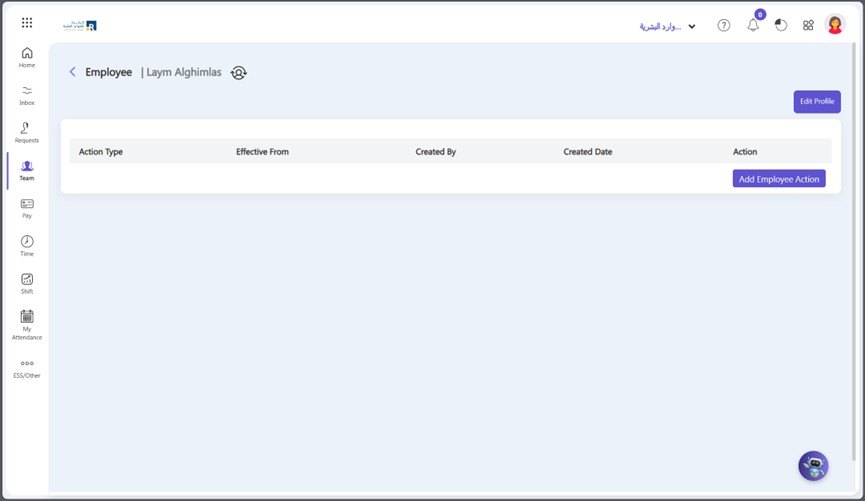
- You can view your timeline history like promotion, increments, bonus etc.
View Employee Last Login History
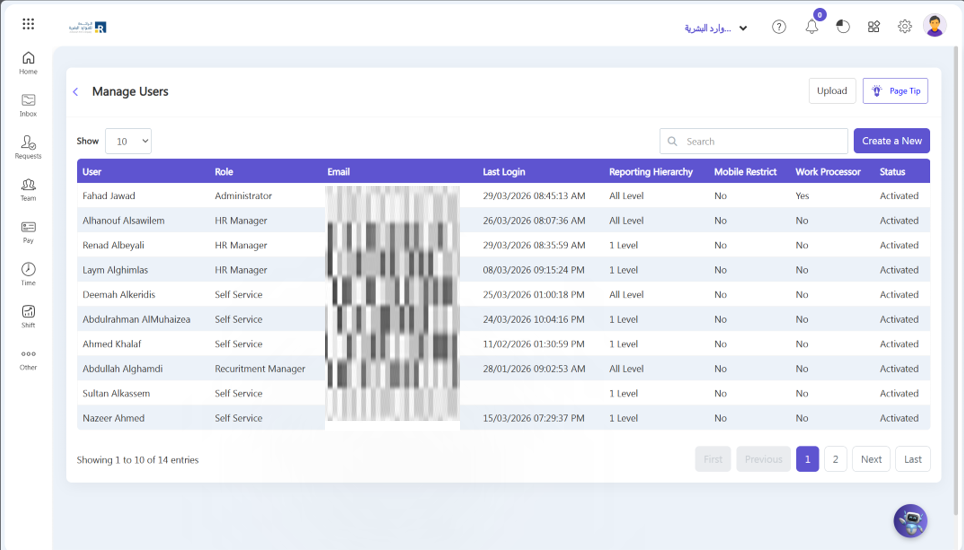
As an HR manager and administrator, you can examine employees’ login Time and relevant information, including the date and time of their most recent login and their status, as well as manually add new users.
Procedure:
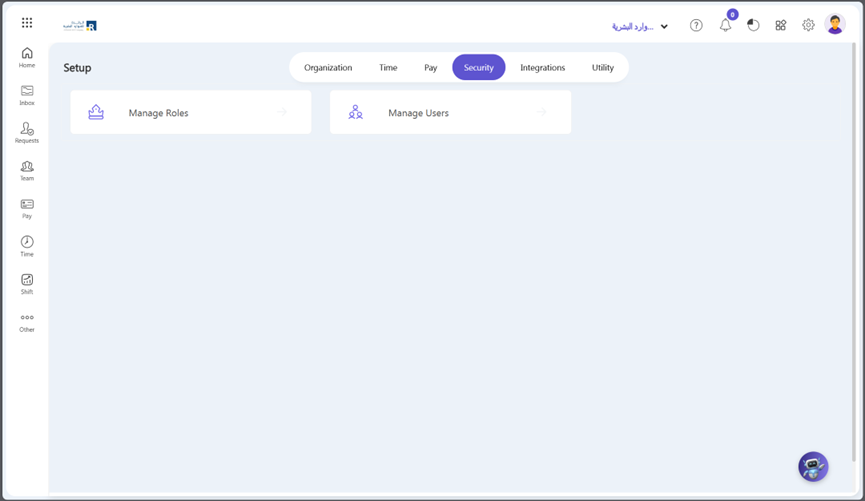
- Go to Setup >> Security >> Manage Users.
How to Edit Employee Login Data?
If you need to edit an employee’s login data in Ojoor, it’s a simple process that can be done in just a few steps. Here’s how:
- Navigate to the Setup > Security > Manage Users.
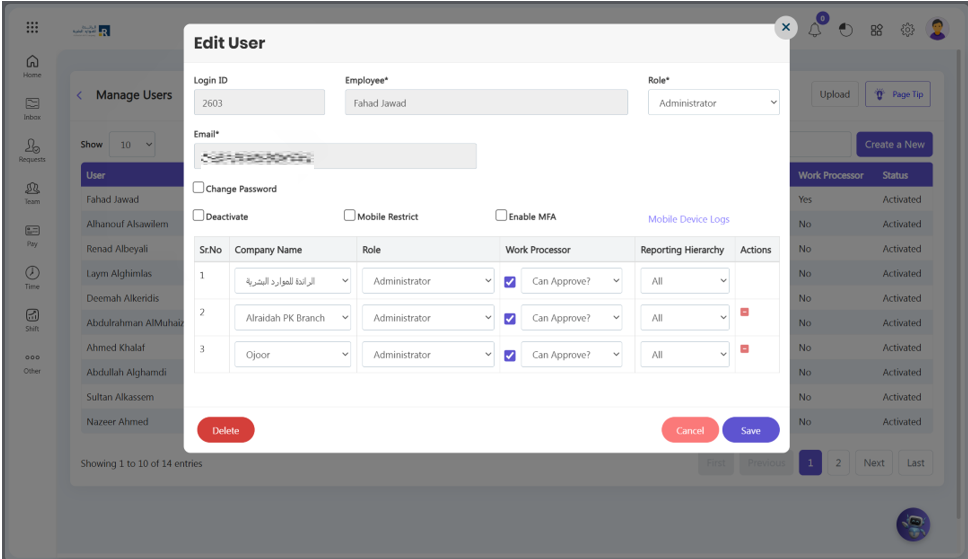
- Find the employee whose login data you want to edit and click on their name to open.
- You can make any necessary changes to the employee’s password or role.
- Click “Save” to save your changes.
View Organization Tree
The organization tree in Ojoor is a useful feature that allows you to visualize the hierarchy of your organization. It provides a clear and concise overview of the different departments, teams, and individuals within your company.
Note:
” To setup company ORG chart add line manager of employees in their Profile Official section“
Here’s how you can view the organization tree in Ojoor:
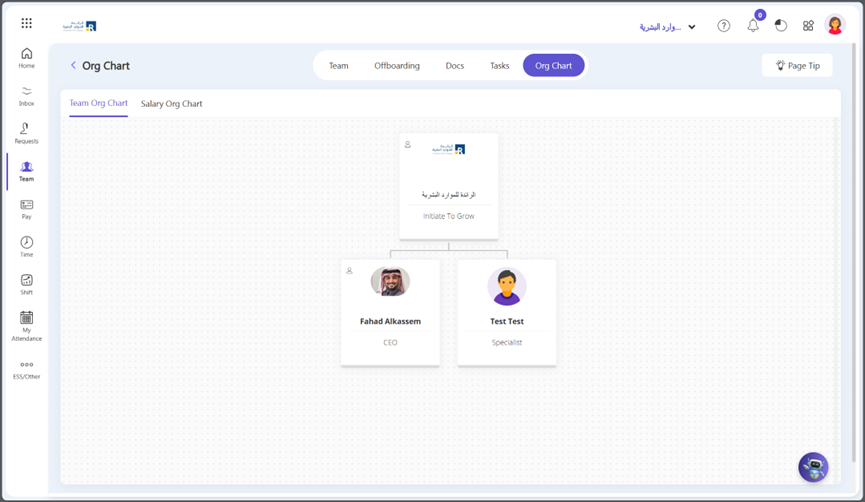
- Navigate to the Team > Org Chart > Team Org Chart.
- You will see a visual representation of your organization’s hierarchy, with the CEO or top-level executive at the top of the tree.
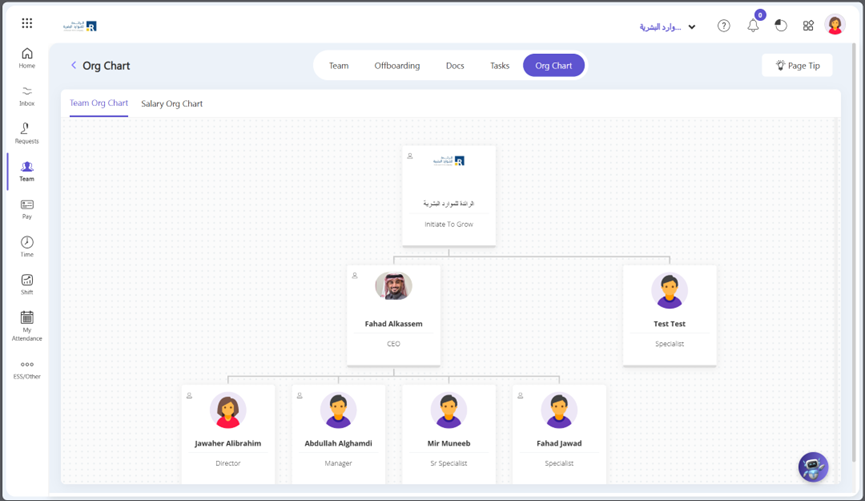
- You can expand or collapse different branches of the tree to view detail by hover to any branch and click arrow which is located at left, right, top and bottom of the node.
- Over each node in the tree will display additional information about that individual or team, such as their profile picture, name, designation.
View Employee Directory
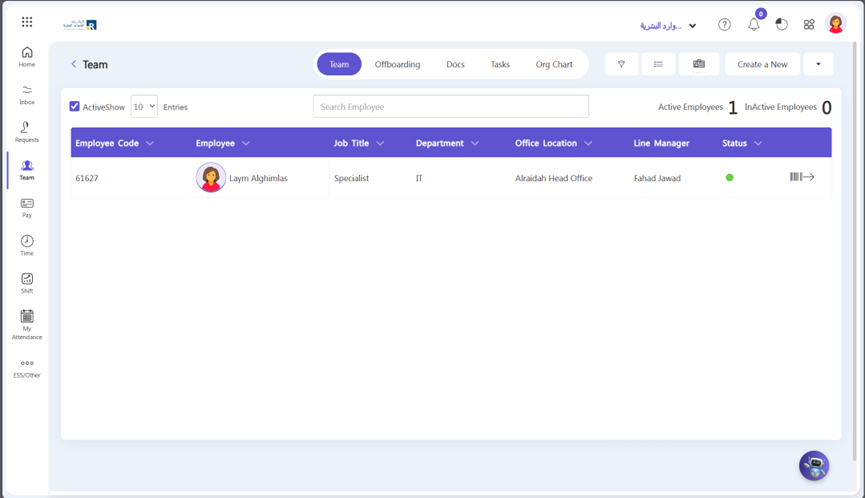
Ojoor offers a simple and easy-to-use employee directory feature that allows you to quickly find and view information about your colleagues that is separated by department, location and job title.
There are two ways to view the employee directory , follow these simple steps:
- Go to Team section.
- First view is a Grid view.
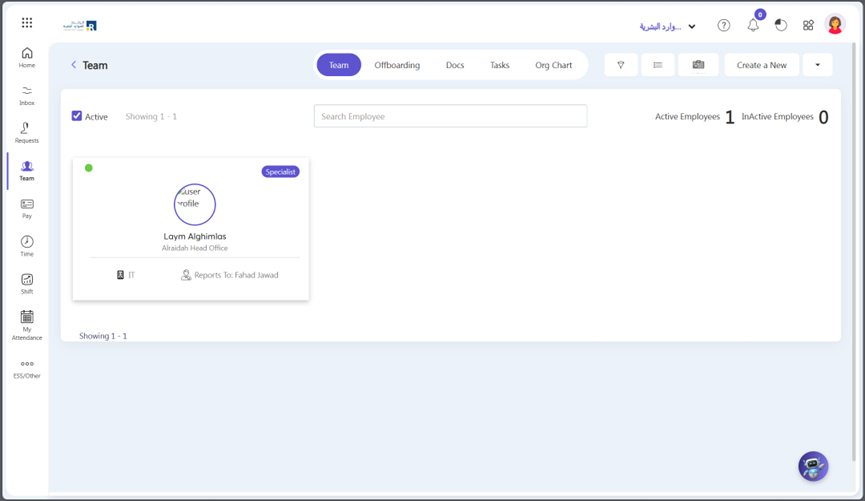
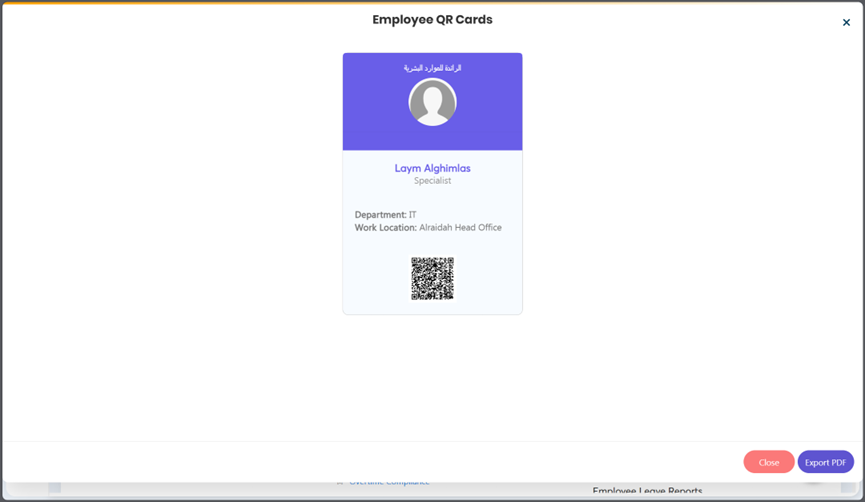
The second is a Detailed View. In the detail view, you can see your employee-related basic details like the total number of active and deactivated employees in the system, work locations, can print employee QR codes, and many other basic details.
Access Employee Reports
As a business owner or manager, it is important to have access to employee reports to track productivity and performance. Ojoor offers an easy and efficient way to access employee reports. Here’s how:
- Navigate to the Reports section: Once you are logged in, navigate to the Other section > Reports on the Ojoor dashboard. Here, you will find a list of different types of reports that you can generate.
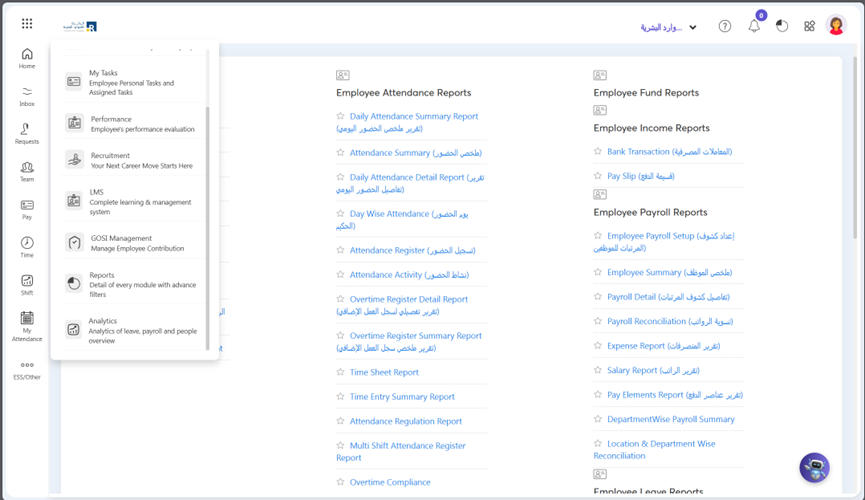
- Choose the type of report you want to generate: Depending on your needs, you can choose to generate different types of employee reports such as attendance reports, performance reports, or payroll reports.
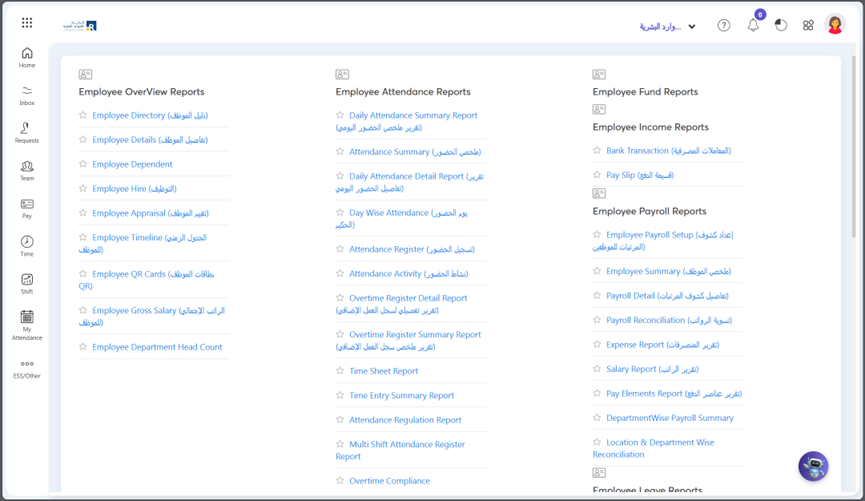
Report Filters: Once you have selected the type of report you want to generate, you can customize it by selecting the date range, employee names, and other relevant parameters.
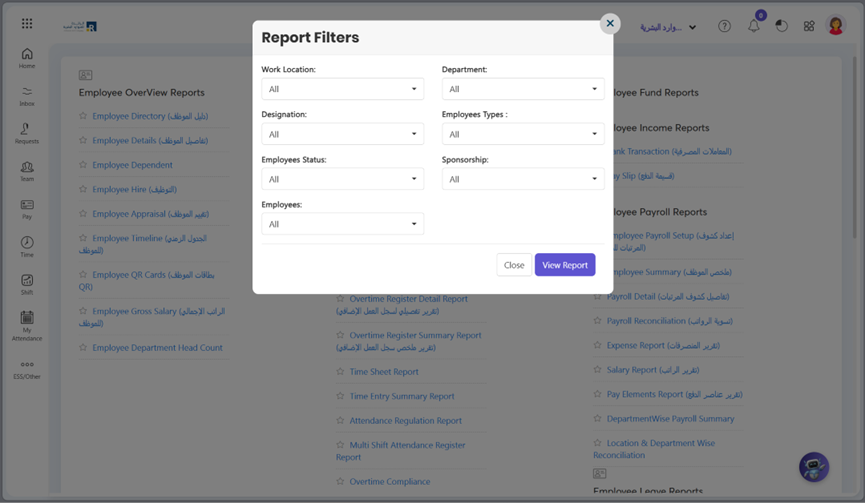
- Generate the report: After customizing the report, click on the View Report button to generate the report. The report will be generated in a few seconds, and you can view it on your screen or download it in different formats such as PDF or Excel.