
Table of Contents
- How to Create a Loan?
- Loan:
- Repayments of Loan Amount
- Manual Repayments of Loan by Cash
- Auto Repayments of Loan by Salary
- Advance
- Provident Fund
How to Create a Loan?
Creating a request for a Fund can be a daunting task, but it doesn’t have to be. Determine the type of loan you need: Before creating a request for a loan, it’s important to determine the type of loan you need. There are three types of loans available, such as loans, advances and provident funds. Here are some simple steps to follow when creating a request for a loan:
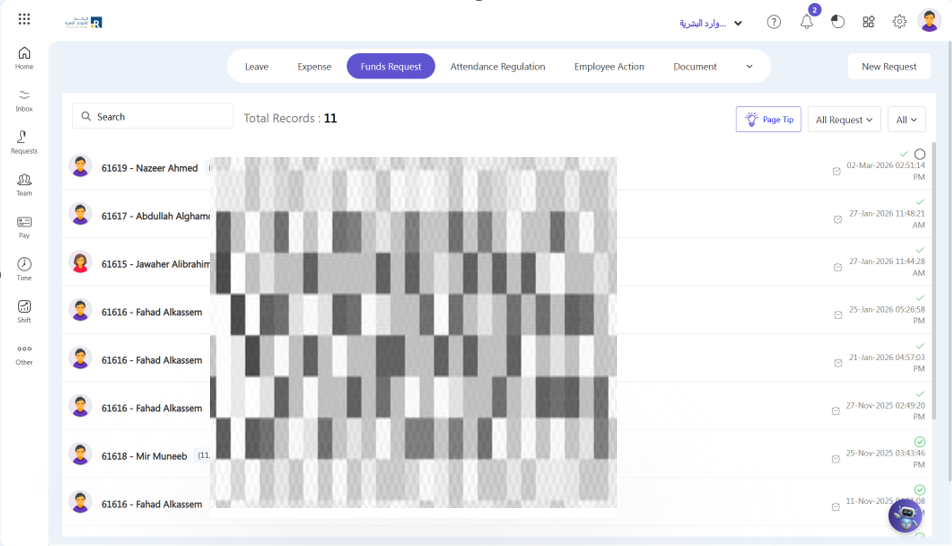
- Requests > Funds Request > All Request/My Request > New Request
Note:
- All Requests: If you want to add your team request.
- My Request: If you want to add your request.
OR
- Click on “Create a New” in the top right corner.
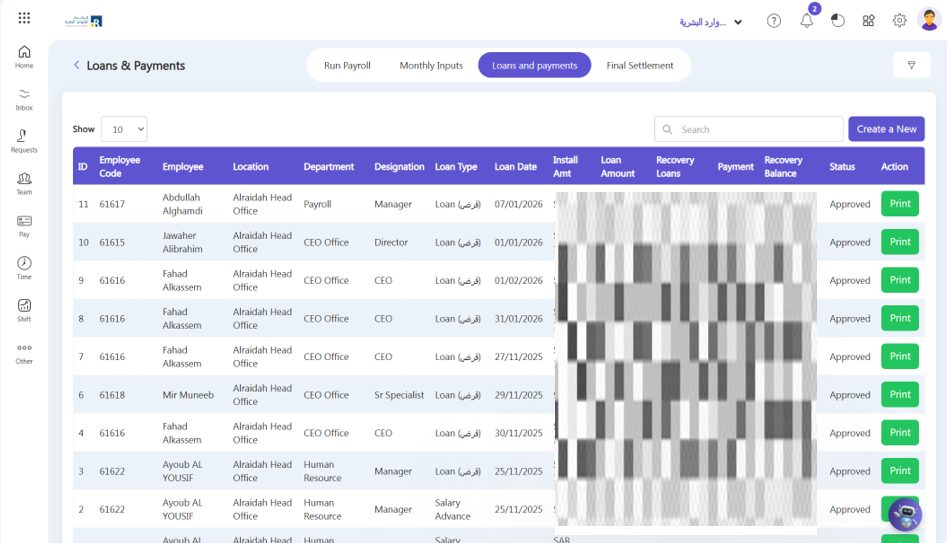
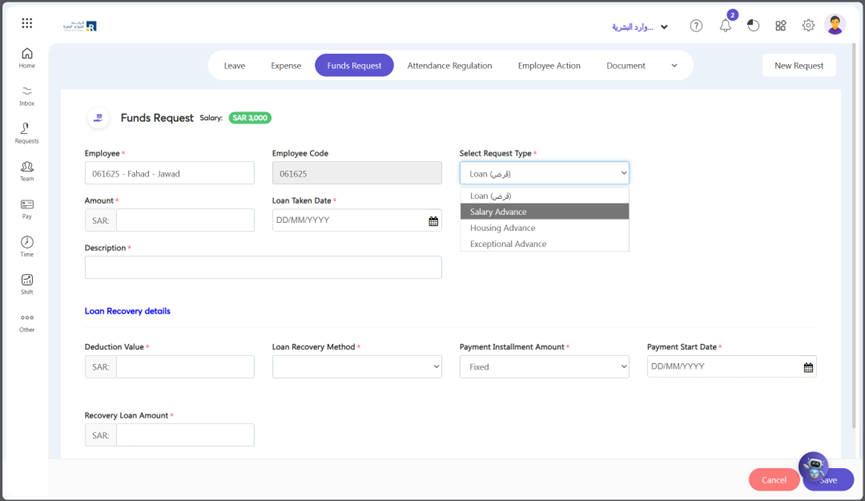
- Loan Type: Select the loan type, whether it is a loan, advance or Provident Fund.
Loan:
- Select loan type loan.
- Search for employees for whom you want to add a loan. Then add the description.
- Select the loan of the loan type.
- Loan Recovery Method: Select the method of payment recovery, whether to deduct from per month’s salary or by cash.
- Payment Installment Amount: Select the instalment method in which you want to deduct the loan from the employee’s salary, whether it’s a fixed amount or a percentage of the basic salary.
- Add Loan Taken Date & Payment Start Date.
- Enter the Loan Amount.
- Enter deduction value: If the deduction is in percentage (%), enter the percentage value in the “Deduction Field”. Alternatively, if you selected a fixed amount in the “Payment Installment Amount” section above, enter that amount.
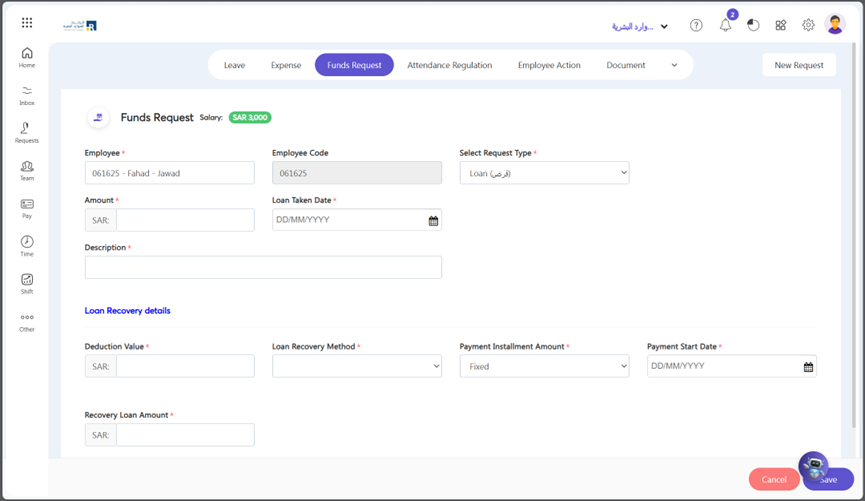
- Click Save button
Repayments of Loan Amount
- You can manage all of the loans you’ve provided for your employees using the loan module in Ojoor, and you may take repayments out of their salaries each month.
Manual Repayments of Loan by Cash
If you are a user of Ojoor, you want to add a loan amount manually, or if any employee pays a sum that exceeds the instalment amount deducted from his or her salary, add that sum to the loan balance using Add Payment. Here are the steps to follow:
- Go to Pay > Loans And Payments
- Select entry whose loan you want to add
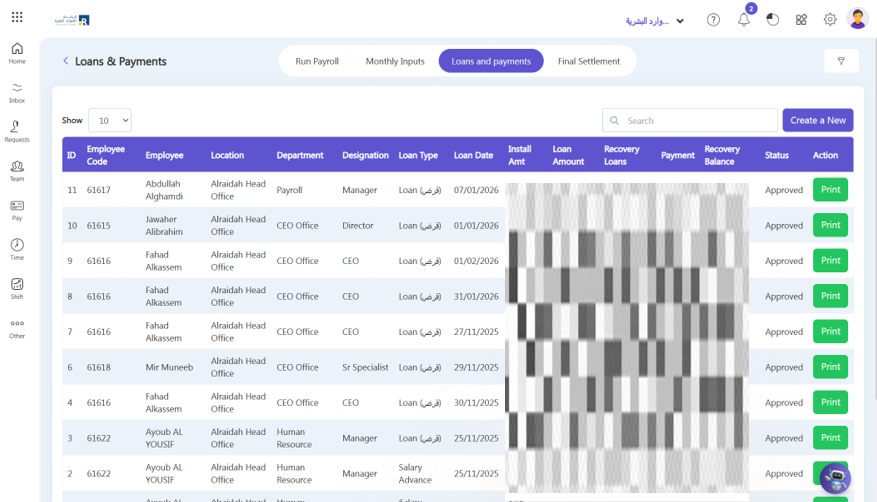
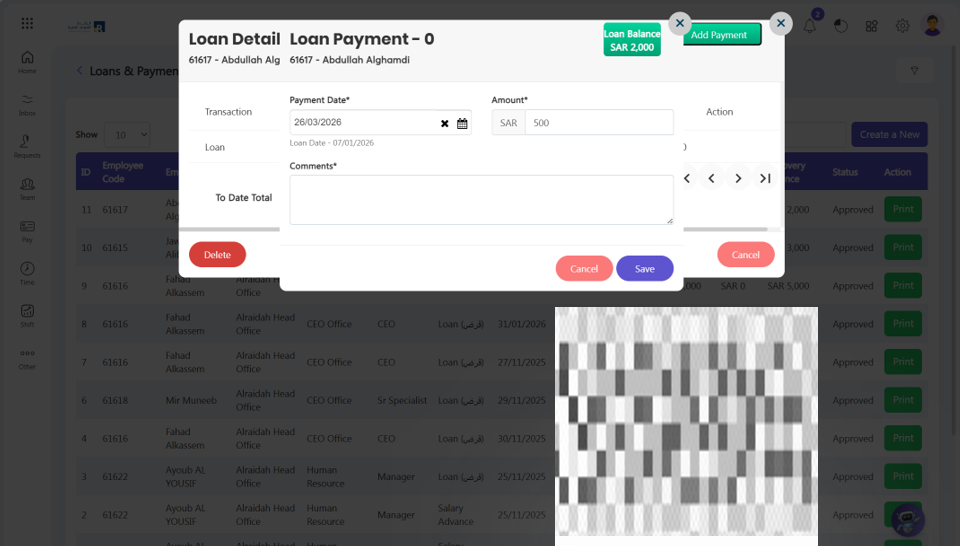
- Click on “Add Payment” in the top right corner.
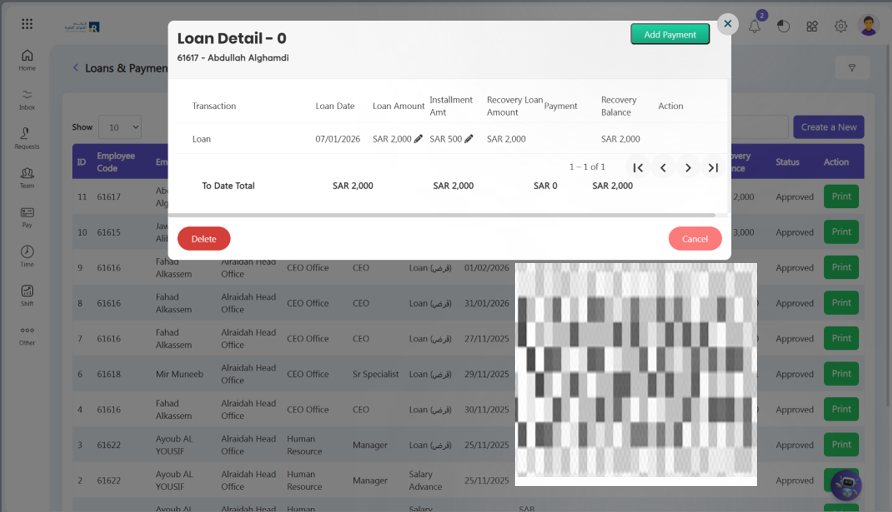
- You can add a date and an amount of installment here.
- Click Save button.
Auto Repayments of Loan by Salary
- If we have any loans, you can integrate them with payroll so that your amount is deducted immediately from salary.
- Go to Pay > Loans And Payments
- Select the entry whose details you want to see.
Advance
- Apply in the same way as a loan, but this time choose ‘advance’ for an advance salary or payment.
- If we have any advances, you can integrate them with payroll so that your advance is deducted straight from your salary account.
Provident Fund
The method is the same as when applying for a loan or advance. You have two alternatives here if you choose the provident fund.
- Temporary
If you have given any temporary PF loans, it can manage the loans that you have provided for your employee, and you can deduct repayments from the employee’s salaries each month.
- Permanent
An employee who takes out a permanent PF loan does not pay it back in monthly instalments.
- After saving, the request will show on the approver’s dashboard in Pending tasks.
- By clicking on the pending button, the approver can accept or reject the request.